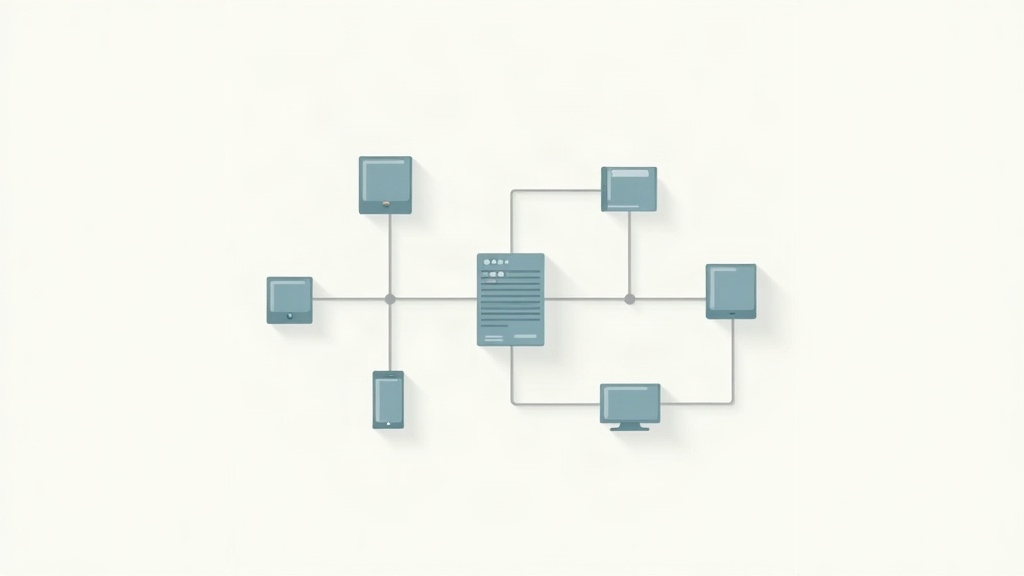
Most small businesses still move documents by hand. A client emails a PDF, someone downloads it, retypes the totals into a spreadsheet, and then uploads the same file to an accounting tool. That loop repeats dozens of times a month, and every repetition invites a typo. Document automation replaces the retyping with a workflow that reads the file, pulls out the fields you care about, and pushes them wherever they need to go. For a solo freelancer, that might mean an invoice lands in your bookkeeping ledger without you opening it. For a five person agency, it might mean contracts get filed, tagged, and summarized before anyone reads page one.
The tooling has changed a lot since 2020. You no longer need a developer to wire up an OCR engine or train a model on your own paperwork. Platforms like n8n and Make ship with document parsers, AI nodes, and ready made connectors for Google Drive, Dropbox, QuickBooks, and Gmail. According to McKinsey research on knowledge work, employees spend roughly 1.8 hours every day just searching for and gathering information. A large share of that time happens inside documents. When you automate intake and routing, that time goes back into billable client work instead of copy and paste.
This guide covers what document automation actually includes, how the plumbing works, which tools fit a tight budget, and where beginners get stuck. You will also see concrete projects you can launch this week, from invoice parsing to contract routing to receipt capture on your phone. Everything here assumes zero coding experience and a monthly software budget under $50. If you already run a couple of workflows, skip to the section on cost and mistakes, because that is where most people overspend.
| Tool | Best For | Typical Starting Cost | Watch Out For |
|---|---|---|---|
| n8n | Self hosting and high document volume | Free self hosted, cloud from about $24/mo | You own server updates and backups |
| Make | Visual learners who want to see the flow | Free tier, paid from about $9/mo | Operation limits add up quickly |
| Zapier | Widest app coverage and fastest setup | Free tier, paid from about $20/mo | Task based pricing at scale |
| OpenAI API | Reading messy invoices, scans, and photos | Pay per token, often cents per document | Requires a validation step |
| Google Drive and Sheets | Free storage and a simple document database | Free with a Google account | Not a real database at high volume |
What Is Document Automation and What Does It Cover?
Document automation means any system that takes a document, extracts usable information from it, and moves that information into another tool without a human retyping it. The document can be a PDF invoice, a scanned receipt, a Word contract, a filled order form, or a photo of a handwritten delivery note. The destination can be a spreadsheet, a CRM record, an accounting ledger, a Slack channel, or a fresh document built from a template.
Three jobs sit inside almost every setup: capture, extraction, and routing. Capture is getting the file into the workflow. Extraction is turning pixels or raw text into named fields. Routing is deciding what happens next and sending the data there.
Extraction is where AI changed the rules, though the acronyms still confuse people. Optical character recognition, or OCR, converts an image into text. A parser or language model then finds the fields. Modern vision models can read a messy invoice and return clean JSON with the correct values, even when the layout changes between vendors. That flexibility is the difference between 2020 tooling and what you can build today.
It helps to separate document automation from two neighbors. Document generation is the reverse direction, where a template plus data produces a finished contract or proposal. E-signature tools handle approval and signing. Both connect neatly to automation, but neither replaces it. If you want a plain definition, document automation is the intake clerk that never sleeps and never mistypes a vendor name.
- Capture: pulling files from a shared inbox, cloud drive, scanner, or phone camera.
- Extraction: turning raw text into fields such as vendor, total, due date, and line items.
- Validation: checking totals, dates, and duplicates before anything reaches your books.
- Routing: sending the record to the right destination and flagging what needs review.
- Archiving: storing the original with a searchable name and folder structure.
How Does a Document Automation Workflow Actually Work?

A workflow is a chain of small steps. Each step does one job, and its output becomes the input for the next step. In n8n you call these nodes. In Make they are modules inside a scenario. In Zapier they are actions inside a Zap. The vocabulary differs, but the shape stays the same, and the n8n documentation explains triggers and nodes in plain language if you want the official version.
Step one is the trigger. Something has to start the run. Common triggers include a new email in a shared inbox, a new file in a Google Drive folder, a form submission, or a scheduled run every weekday at 7am. Triggers cost nothing to set up and are the easiest part of the build.
Step two is retrieval. The workflow downloads the file and converts it into something the next step can read. Scanned PDFs usually need OCR here. Text based PDFs and Word files can skip that.
Step three is extraction, where an AI model earns its keep. You send the document text to a model with a clear instruction and a defined output shape. Something like, return a JSON object with vendor, invoice_number, total, currency, and due_date. The model returns those fields, and you map them into later steps. OpenAI’s API documentation covers structured output formats that make this reliable.
Step four is validation. Totals should match line items. Dates should be real dates. If a field comes back empty, you want a fallback rather than a silent failure.
Step five is delivery. Write the row to Google Sheets, create the bill in QuickBooks, post a summary to Slack, and move the original file into an archive folder named by year and vendor. Step six is the error path, which every serious workflow needs. If extraction fails twice, send the document to a human review queue instead of retrying forever.
- Trigger: new email, new file, form submission, or a schedule.
- Retrieve: download the file and run OCR when the document is a scan.
- Extract: send text to a model and request a fixed JSON schema.
- Validate: check totals, dates, and duplicate invoice numbers.
- Deliver: write to your ledger, CRM, or sheet and archive the original.
- Escalate: route failures to a human instead of looping.
Which Document Automation Tools Should a Freelancer Pick?
Three platforms cover almost every small business case, and each has a different personality. Make is the visual builder most freelancers start with. You drag modules onto a canvas, connect them, and watch the data flow between steps. The free tier is generous enough to test the idea without a card. My longer Make.com review covers scenario design and pricing in detail.
Zapier has the widest library of app connectors and the gentlest learning curve. If your document flow touches a niche SaaS tool, Zapier probably supports it already. The tradeoff is task pricing at volume and less control over complex branching. For simple three step flows, that tradeoff rarely matters.
n8n is the pick for anyone who wants to self host or handle heavy volume. It runs on your own server, includes code nodes when you need them, and does not charge per operation. If that sounds appealing, start with the walkthrough on how to self host n8n on a $5 VPS, then read the full n8n review for the tradeoffs.
For extraction, OpenAI is the layer most workflows plug into. You do not need a separate OCR subscription for clean digital PDFs, and a vision capable model handles scans and phone photos well enough for invoices and receipts. Prices shift, so check current rates before you commit to a plan.
- Pick Make if you learn best by seeing the flow on a canvas.
- Pick Zapier if you need one specific app connector and want the fastest setup.
- Pick n8n if you process hundreds of documents a month or want data on your own server.
- Pair any of them with a vision model for extraction, and Google Sheets for storage.
What Can You Automate in Your First Week?

Start with the document type that arrives most often. For most freelancers that is an invoice. Invoice processing automation is the classic first project because the fields repeat across vendors and the payoff shows up immediately. You stop typing vendor names into a spreadsheet and stop chasing PDFs across three folders.
The second project is outgoing paperwork. How to automate invoicing with AI covers generating, sending, and chasing invoices, which pairs neatly with a reminder email that goes out on day 15. That flow alone recovers a few hours a month for most solo consultants.
Third, look at intake. A new client fills out a form, and the workflow creates a project folder, drafts a contract from a template, saves a CRM record, and sends a welcome email. That is four steps and about an hour of setup.
Fourth, receipts. Photograph a receipt, and the workflow extracts merchant, amount, and date, appends a row to your expense sheet, and files the image by month. This one pays for itself at tax time. Fifth, contracts. Route anything above a set value to a lawyer, archive the rest, and pull out key dates like renewal notice and termination windows.
Measure before you build. Time yourself sorting and typing for one week, then run the same task through the workflow and compare. A simple log step that writes a timestamp to a sheet gives you the numbers. Once you see the hours, deciding whether to expand the system stops being a gut call and starts being arithmetic. Give each document type its own workflow, because combining five of them into one giant scenario makes debugging miserable.
- Inbound invoices: extract, validate, file, and write to your ledger.
- Outbound invoices: generate from a template and schedule reminders.
- Client intake: create folders, contracts, CRM records, and welcome emails.
- Receipts: capture by phone and file by month for tax season.
- Contracts: route by value, archive, and surface renewal dates.
How Do You Build Your First Workflow Without Code?
A practical first build takes about 20 minutes if you follow a known pattern. The walkthrough on building your first n8n workflow in 20 minutes uses the same skeleton for document handling: a trigger, a fetch, a transform, and a write. Copy that shape and swap the payload for a PDF.
Pick one folder to watch. Create it in Google Drive or Dropbox and drop two sample invoices inside. Consistency matters more than volume at this stage. Two clean samples beat twenty messy ones.
Write the extraction prompt before you touch the tool. List the fields you want, name them exactly as your destination expects, and test the prompt in a chat window until it returns clean output three times in a row. Only then paste it into the workflow.
Build in three passes. First pass, move the file and log its name. Second pass, add extraction and print the output. Third pass, add the write step and the validation filter. Testing in layers saves hours of guessing which step broke.
Add a human review branch. Send failures to a Slack channel or a shared inbox with the original file attached. You will use it more at the start than you expect, and that is fine. Then write down what the workflow does in one paragraph and store the note beside the workflow. Six months from now, that note is worth more than the workflow itself.
When you name files, include the date and the vendor in a fixed order, like 2026-03-acme-invoice-4471.pdf. Sorting and searching both get easier, and duplicate detection becomes trivial. Add a check that skips any document whose invoice number already exists in your sheet. That single filter prevents double payments, which is the most expensive mistake in this entire process.
- Create one watched folder and add two clean sample documents.
- Test your extraction prompt in a chat window before building anything.
- Build in three passes: move, extract, then write and validate.
- Add a review branch for failures from day one.
- Write a one paragraph note explaining the workflow and its owner.
What Does Document Automation Cost and What Goes Wrong?
Cost breaks into three buckets: the platform subscription, the AI extraction calls, and your time. The platform is the most predictable. Make and Zapier both offer free tiers, and paid plans start under $25 a month at freelancer volume. Self hosted n8n on a small VPS runs about $5 to $10 a month with no per task fees at all.
AI extraction is usually cheaper than people fear. A vision model reading a one page invoice consumes a few thousand tokens, so the per document cost lands somewhere between a fraction of a cent and a few cents, depending on the model and page count. A freelancer processing 150 invoices a month is looking at pocket change, not a line item.
The number worth tracking is cost per document processed end to end. Ardent Partners research on accounts payable has put manual invoice processing at roughly $10 to $15 per invoice once you count labor, with automated processing below $3. That gap is the business case, and it holds even when your hourly rate is modest.
What goes wrong tends to fall into four patterns. People automate a process that should simply be deleted. People skip validation and let bad data reach their books. People build one enormous workflow instead of several small ones. And people forget the archive, so six months later they cannot find the original file behind a number.
There is a quieter failure mode too: over automation. If a workflow sends a payment or emails a client on its own, you have removed the human check that catches a bad extraction. Keep a review step on anything that touches money or a client relationship until the workflow has run clean for at least a month. After that, loosen the reins one step at a time and watch the error log.
- Platform: free tiers available, paid plans usually under $25 a month.
- Extraction: fractions of a cent to a few cents per document at small volume.
- Labor: manual invoice handling runs $10 to $15 per document, automated under $3.
- Risk: skipped validation, missing archives, and over automation.
Frequently Asked Questions
Do I need to know how to code for document automation?
No. Make, Zapier, and n8n all let you build a document workflow by connecting pre-built blocks on a visual canvas. You only touch code if you want a custom transformation, and most invoice or receipt projects never need one.
Can AI really read a scanned invoice accurately?
Vision-capable models handle printed invoices and receipts well, typically above 95 percent field accuracy on clean scans. Accuracy drops on handwritten notes, rotated photos, and unusual layouts, so always add a validation step and a human review path.
What is the cheapest way to start document automation?
Use a free Make or Zapier tier with Google Drive and Google Sheets as your storage layer, and pay only for the AI extraction calls. That setup costs a few dollars a month at freelancer volume.
Is it safe to send client documents to an AI model?
It depends on the document and the provider. Check whether the model provider trains on your data, pick a business tier with data processing terms if needed, and strip anything you would not want stored, such as bank details or personal identifiers.
How many documents per month justify automation?
Most freelancers see a return above roughly 20 documents a month once you count the retyping, filing, and error checking. Higher volumes simply make the savings larger and the review queue more worthwhile.
What happens when the workflow makes a mistake?
Good workflows fail loudly. Set the extraction step to retry once, then route failures to a Slack channel or shared inbox with the original file attached. You fix the document by hand, and the workflow keeps running.
What Should You Remember?
- Start with one document type, not five. Invoice parsing is the easiest first win because the fields repeat across vendors.
- Always add a validation step. A totals check and a duplicate invoice filter prevent the two most expensive errors.
- Self-host n8n if volume is high. A $5 VPS removes per-task pricing and keeps document data on hardware you control.
- Keep a human review branch for anything that touches payments, contracts, or client communication.
- Measure cost per document, not monthly subscription price. Manual invoice processing runs $10 to $15; automated sits under $3.
- Name and archive every original file by date and vendor so you can trace any number back to its source.
- Write a one-paragraph note beside each workflow explaining what it does and who owns it.
This article is for general information only. Review your workflow data and the permissions you grant to connected tools before you enable automation. Some platforms have free-tier limits and paid plans that change over time , always check current pricing and plan limits on the vendor’s site before you commit.