For freelancers and small teams, invoicing is the least fun part of a project. You finish client work, then open a spreadsheet, copy project details, build a PDF, email it, and track the due date. That manual chain eats two to five hours every month. AI automation removes it. Tools like n8n and Make let you connect proposals, time tracking, contracts, and payment apps. When a job status changes to complete, the system builds the invoice, sends it, and follows up. No typing. This guide shows the exact steps.
This guide covers a production workflow in both n8n and Make. You will learn trigger events, data mapping, AI extraction, invoice generation, and payment reconciliation. We cover both platforms because they suit different teams. n8n self-hosted is free and code-friendly. Make is visual and has more prebuilt app connectors. For a deeper comparison, read the n8n review and the Make review. Choose the one that fits your technical comfort level.
The workflow assumes a simple path: job completion to payment received. You can adapt it for fixed-fee projects, retainers, or per-deliverable work. AI does two jobs. First, AI extracts line items from a job record or project notes. Second, AI writes a polite payment reminder if the client is late. You avoid retyping data from a CRM or timesheet. If you have ever fat-fingered an invoice amount, you know the value of zero manual data entry. The system keeps your records aligned.
By the end, you will have a repeatable system. The free tiers can support this for many freelancers. Make gives you 1,000 operations per month on its free plan. n8n self-hosted can run unlimited workflows if you have a small VPS. That said, you should still test in a sandbox before sending real invoices. Let’s start with the field map, because clean data is the foundation. Even a simple automation saves hours after the first month.
What You’ll Need
- n8n or Make account
- Airtable, Google Sheets, or a CRM for client data
- OpenAI API key or equivalent AI model access
- Stripe, QuickBooks, Xero, Wave, or another invoicing app
- A project management tool with job completion triggers
How Do You Automate Invoicing with AI in n8n and Make?
- Map every field your invoice needs
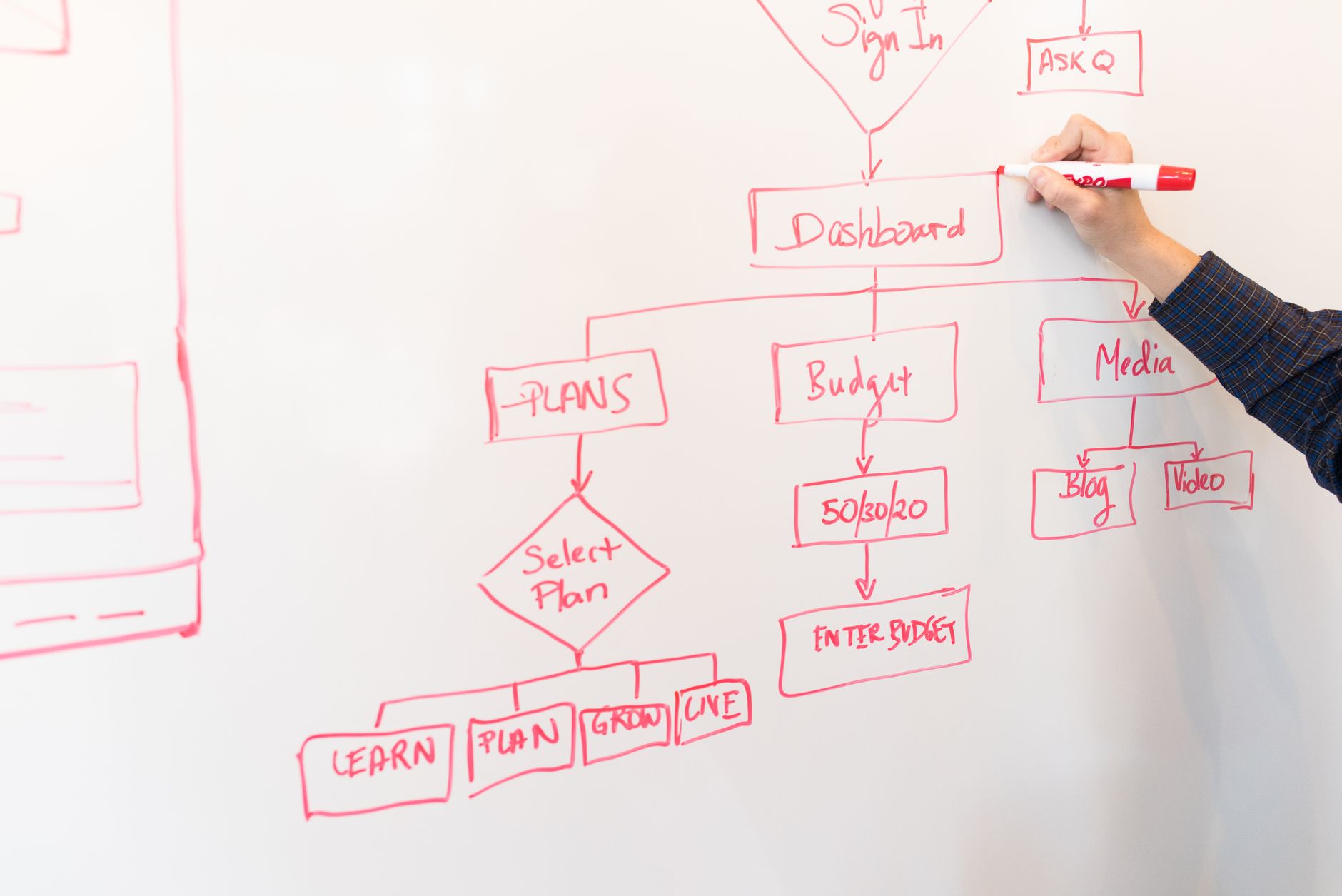
Before opening n8n or Make, map the data path. You need a trigger event, a client record, project or deliverable details, line items, rates, payment terms, and a destination invoice app. A clear map stops half-built workflows. Most freelancers skip this step and then wonder why invoices miss purchase order numbers or tax settings. Write down exactly what appears on a typical invoice.
Create a simple table. Column A is the field name on the invoice, like Client legal name, Billing email, Line item description, Quantity, Unit price, Due date, and Tax rate. Column B is where that data lives. It might be in Airtable, Google Sheets, a CRM, or a project management board. Column C is the format the invoice app expects. For example, Make’s Stripe app expects amounts in cents, not dollars. Keep this table visible while you build.
Include fields AI can fill. If your project notes say ‘Designed 12 social posts for March campaign at $95 each’, AI can extract quantity 12, description, and unit price. That saves you from manual line item entry. For a deeper look at how invoice data extraction works, see invoice processing automation. This step also helps you decide what the AI should never guess.
Decide what happens when data is missing. Should the workflow pause? Should it send you a Slack alert? Should it use a default tax rate? Write those rules down. This first step is process work, not software work. But it makes every later node choice obvious.
- Build the job completion trigger
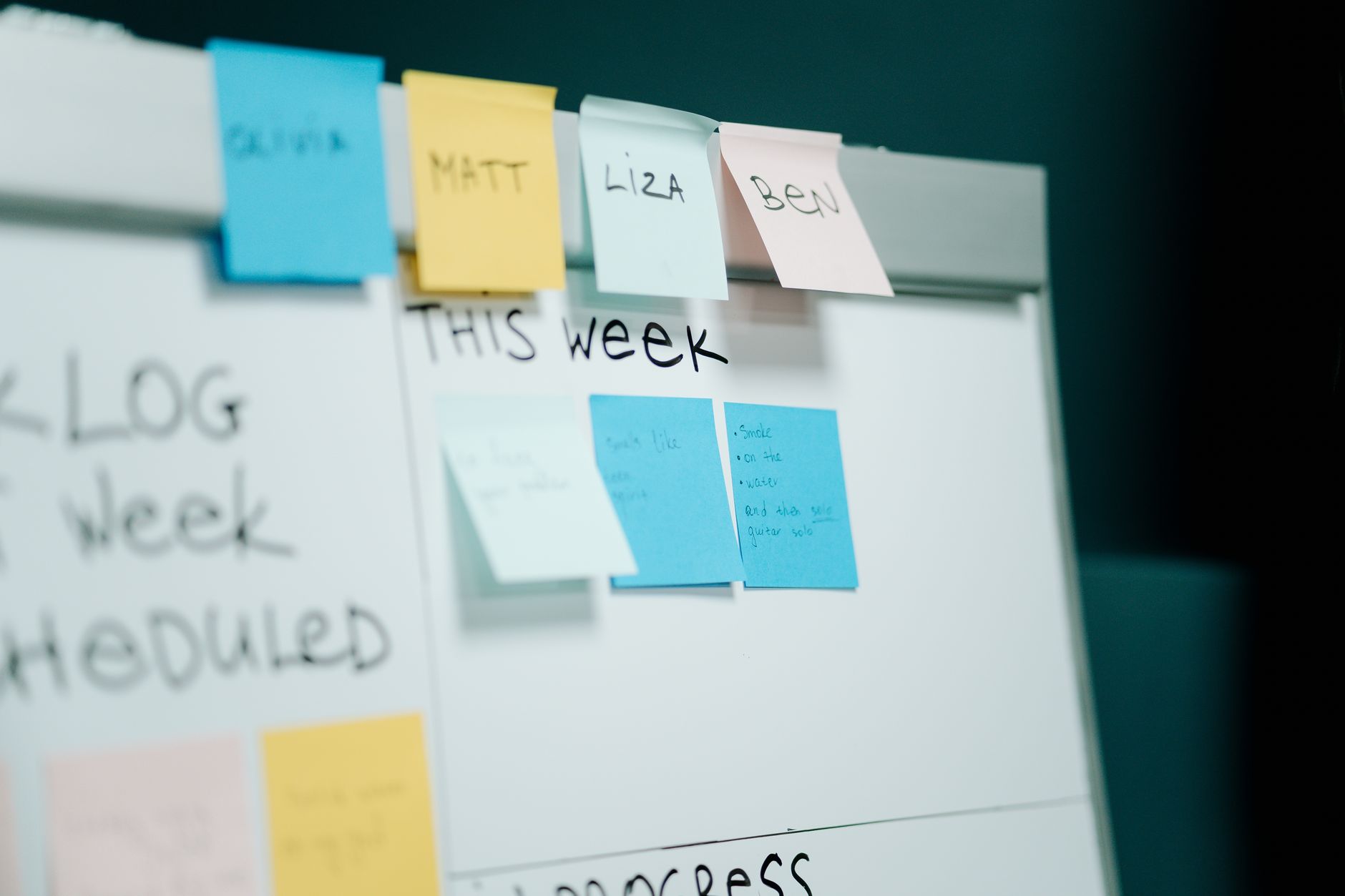
Decide what event means a job is done. Common triggers: a project card moves to Done in Trello or Asana, a client signs off in a portal, a time tracking entry reaches a set hour count, or a new row appears in a Google Sheet marked Complete. In Make, create a new scenario and choose a trigger module. In n8n, add a trigger node. The trigger starts the entire invoice pipeline.
For n8n, the easiest start is a Webhook or a Google Sheets trigger. n8n supports more than 400 nodes, which you can browse at n8n.io. n8n self-hosted community edition has no monthly execution limit. That matters when you invoice many small jobs.
For Make, connect the app where job completion happens. Make supports thousands of apps, so Trello, Asana, ClickUp, and Notion are covered. The free plan gives you 1,000 operations per month. That is enough for roughly 200 to 300 invoices if each invoice uses three to five operations. Check the visual builder at make.com.
Test the trigger with a real completed job. Do not use fake data. Real data shows formatting issues early. After the trigger fires once, you know the next step can run. If the trigger does not fire, check that the field value exactly matches your condition. A trailing space or a renamed board column can stop everything.
- Pull client and project data automatically
Once the trigger fires, the next nodes must collect everything about the client and project. In n8n, add a Google Sheets, Airtable, or Postgres node. In Make, add a Search Records module. You want a lookup, not a new entry. Use the client ID or project ID from the trigger to find the correct record.
Look up the client’s legal name, billing email, tax ID, payment terms, and any custom invoice notes. Also pull the project scope, agreed rate, and milestone. Keep all fields in one object. If your client data lives in a CRM, enrich it before invoice creation. The same merge logic can be adapted from lead enrichment workflows, but the principle is simple: one source of truth for client information.
A common mistake is pulling the contact’s personal email instead of the accounts payable email. Ask clients for their AP email during onboarding. Store it in a dedicated field. If the field is empty, set the workflow to stop and notify you, rather than sending an invoice into the void.
Also check for duplicate records. If your lookup returns multiple matches, add a filter that selects the most recently updated row. Duplicate clients create duplicate invoices. That damages trust and creates refund work later. For a ground-up intro to lookup nodes and data mapping, see build your first n8n workflow in 20 minutes. This step sets up clean data for the AI extraction in the next step.
- Use AI to extract and clean line items
This is where AI removes manual data entry. Connect OpenAI or another model to your workflow. Use it to read project notes, delivery logs, or timesheet descriptions. The prompt should return structured JSON: line_items with description, quantity, unit_price, and total.
In n8n, use the OpenAI node or an HTTP Request node to the OpenAI API. In Make, add the OpenAI ‘Create a Completion’ or ‘Message an Assistant’ module. You can also use a local model if you self-host n8n, but most freelancers start with OpenAI because setup takes minutes. Keep the model call small and focused.
Write a strict prompt. Example: ‘Extract invoice line items from the following project notes. Return JSON only. Use these keys: description, quantity, unit_price, currency. If a price is missing, leave it null. Do not invent numbers.’ Always include ‘Do not invent numbers.’ AI models are helpful but they will guess if you let them.
After extraction, validate the output. Use a code node or filter to check that totals multiply correctly. If the AI returns an error or missing field, route the record to a manual review queue. You save time on simple jobs but still catch messy ones. A small validation step prevents embarrassing client emails.

- Generate the invoice in your billing app
Now send the structured data to your invoice generator. This can be Stripe Invoicing, QuickBooks Online, Xero, Wave, Zoho Invoice, or even a PDF template in Google Docs. The invoice app should create the draft, apply tax, and set the due date. In Make, use the invoice app’s module. In n8n, use the corresponding node or an HTTP request.
Map each field from the previous step. Always set the payment terms. If you normally invoice Net 15, hardcode that in the workflow or pull it from the client record. Late payment follow-ups depend on the due date being correct. If the due date is blank, the automation may send reminders too early or too late.
For Stripe, amounts must be in cents. A $950 invoice is 95000. If you pass 950, the invoice is $9.50. That is a classic mistake. Add a code step to multiply all currency values by 100 when using Stripe. Or use a currency helper node that handles decimals and rounding.
If you use QuickBooks or Xero, be careful with tax codes. Map the client’s location to the correct tax rate. A default tax rate can cause undercharging or overcharging. Set up a lookup table for tax codes by country or state. Then the invoice is ready for review or send. For the email side of this handoff, see email follow-up automation template.
- Send the invoice and schedule reminders
You can send the invoice directly from your billing app. Stripe can email invoices. QuickBooks can email. Or you can use your own email service for a branded experience. In n8n, add an Email or Gmail node. In Make, use the Email or Gmail module. Attach the invoice PDF if your app supports it.
Personalize the email with the client name and project summary. Keep the copy short. Do not let AI write a rambling email. One or two lines works. Example: ‘Hi [First Name], here is invoice #INV-1042 for [Project Name]. Payment is due [Due Date]. You can pay online via [Link].’
Schedule follow-ups based on the due date. Create a delay or a scheduled workflow that checks for unpaid invoices every day. Send a friendly reminder three days before the due date. Send a firmer reminder three days after. A third reminder can go to your own task list, not the client.
Keep all email events in one sequence. If a client replies, pause the reminder sequence. If the invoice is paid, stop all follow-ups. Without a stop condition, you will send a reminder for a paid invoice. That looks disorganized and erodes trust.
- Detect payment and update records
The final automatic step is payment reconciliation. Your billing app or payment processor will record the payment. Set up a trigger or scheduled check that watches for invoice status paid. In Stripe, use the invoice.paid webhook. In PayPal, use IPN or webhooks. In QuickBooks, poll for invoice status changes.
When payment lands, update the original job record. Move the project card to Paid. Check off the invoice row in your spreadsheet. Update the client’s lifetime value. Send a thank you note. You can generate that note with the same approach shown in how to automate email with AI. These updates keep your operations clean without opening five apps.
If your accounting app is the source of truth, make sure the workflow writes the payment date and transaction ID back to your CRM. That gives you an audit trail. An audit trail matters at tax time. You can also store payment fees if you use Stripe, so your profit numbers are accurate.
If payment does not arrive by the final due date, create an escalation. The workflow can send you a Slack message or create a task in your project manager. You decide whether to pause work for that client. Automation does not replace collections judgment. It just removes the boring checking.

- Add approvals, error handling, and a kill switch
Your automation should not run 100 percent unmonitored. Add an approval step for invoices above a certain amount. For example, any invoice over $2,000 pauses for your review before sending. In n8n, use a Wait node. In Make, use an approval card. This keeps a human in the loop for large invoices.
Error handling matters more than the happy path. In both tools, add error branches. In n8n, use an Error Trigger workflow. In Make, use error handlers on each module. Log failures to a Google Sheet or Slack channel. If the AI parser fails, the workflow should not send a half-built invoice.
Build a kill switch. A simple toggle in a Google Sheet or a data store that says ‘pause invoicing’ can stop all runs. You need this when you update tax rates, change branding, or discover a data sync issue. The kill switch prevents mass misfires.
Finally, check your monthly usage. Make free plan has 1,000 operations and resets monthly. n8n cloud plans start around 20 euros per month for hosted runs. But if you self-host n8n on a low-cost VPS, your main cost is your time. Review usage monthly so you do not hit plan limits mid-invoice.
Red Flags & Warnings
- 🚨 Never send an invoice with zero validation. AI can invent line items. Always check totals before sending.
- 🚨 Use test mode first. Send invoices to yourself or a sandbox client. A bad invoice to a real client is hard to undo.
- 🚨 Watch currency and units. Stripe expects cents, QuickBooks may expect decimals. A misplaced decimal creates wrong invoices.
- 🚨 Do not store client payment secrets in n8n or Make. Use OAuth, not raw API keys, where possible. Rotate keys if exposed.
- 🚨 Keep a kill switch. A runaway workflow can email clients multiple times. Pause automation before maintenance.
- 🚨 Never auto-send follow-ups without checking if the invoice is paid. Always query current payment status before each reminder.
Frequently Asked Questions
Can I automate invoicing without coding?
Yes. Make is visual and uses drag and drop modules. n8n also works visually but can include JavaScript if needed. Most freelancers can build this system in an afternoon with no code experience.
Does the free plan support invoicing automation?
Yes for low volume. Make free gives 1,000 operations per month. n8n self-hosted community edition is free and unlimited on your own server. Cloud plans have limits, so self-hosting is the cost-effective route for frequent invoicing.
How accurate is AI data extraction for line items?
It is very good when you write a strict prompt and request JSON only. Still, AI can guess missing numbers. Always add validation and manual review for unusual cases. Plan to review the first 10 invoices yourself.
Which invoicing apps work best with n8n and Make?
Stripe, QuickBooks Online, Xero, Wave, and Zoho Invoice all have integrations or API support. Pick the one your clients will pay through. Stripe is popular for online payments and webhook support.
How long does this take to set up?
A basic end-to-end workflow takes two to four hours. If your client data is already clean, you can finish faster. Budget another hour to test different job types and edge cases.
What if my client wants a custom invoice format?
You can generate a PDF with a template tool or use your billing app’s custom branding. The automation fills the data, while the template controls the look. Keep branding separate from data mapping.
What Should You Remember?
- Map data fields first before building any nodes or modules.
- Use a clear job completion trigger from your project management tool.
- AI extracts line items, but always validate totals and missing values.
- Choose an invoice app with payment status webhooks or polling.
- Schedule reminders only after checking the invoice is still unpaid.
- Build a kill switch and test with sandbox invoices before going live.
This article is for general information only. Review your workflow data and the permissions you grant to connected tools before you enable automation. Some platforms have free-tier limits and paid plans that change over time , always check current pricing and plan limits on the vendor’s site before you commit.